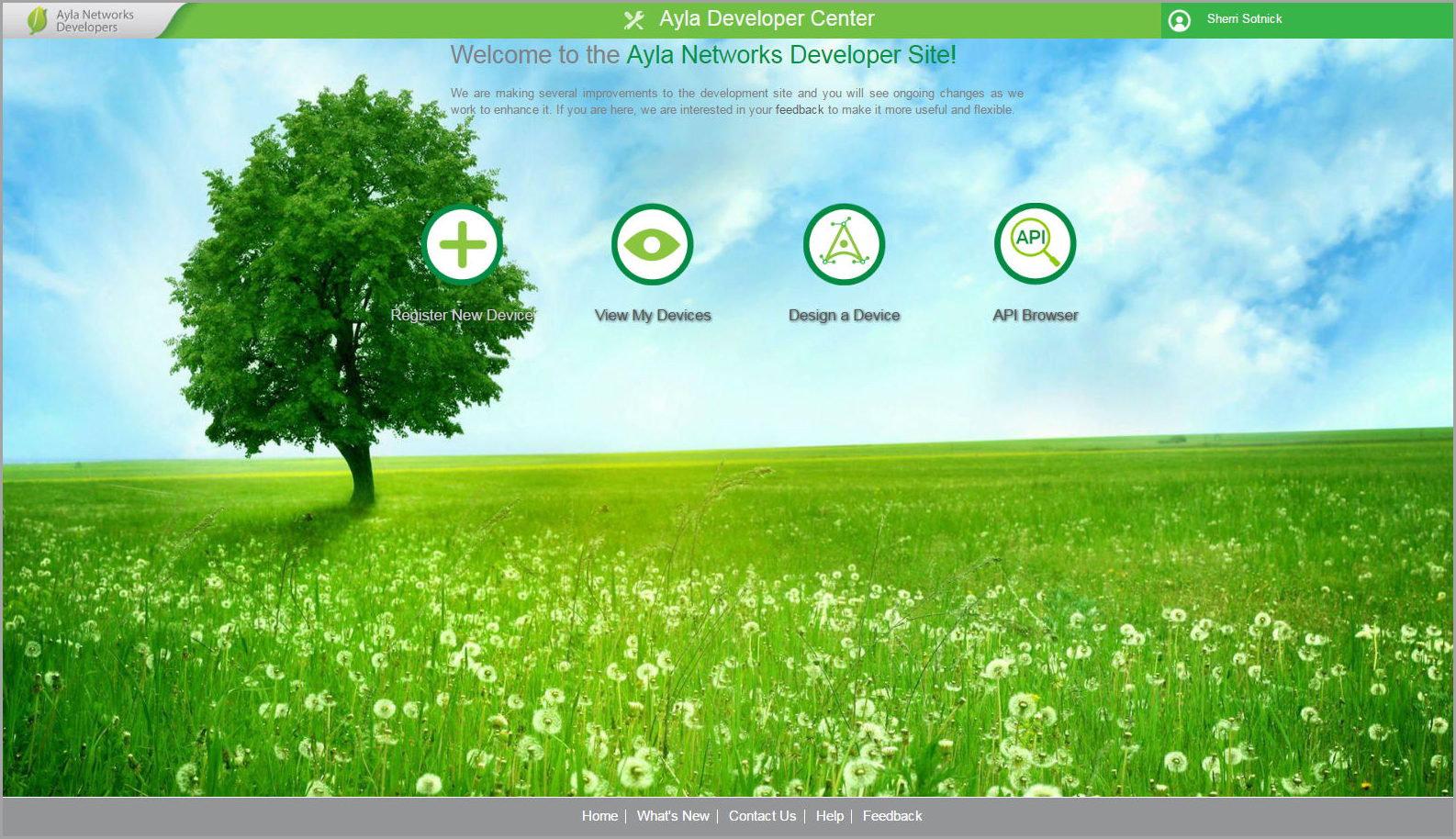
Ayla Developer Account
To use the Ayla IoT Design Kit, you must first create an Ayla Developer account from either your iOS or Android mobile phone/tablet (which is recommended) or laptop/computer. With your account, you have access to the Ayla Developer Portal, which enables you to complete the following tasks:
- Register and configure new devices
- View and modify device properties
- Design templates, schedules, groups, and roles
 Create the Ayla Developer Account from an iOS Phone/Tablet
- Download the Ayla Aura app if you have not done so already. Refer to Prerequisites for instructions.
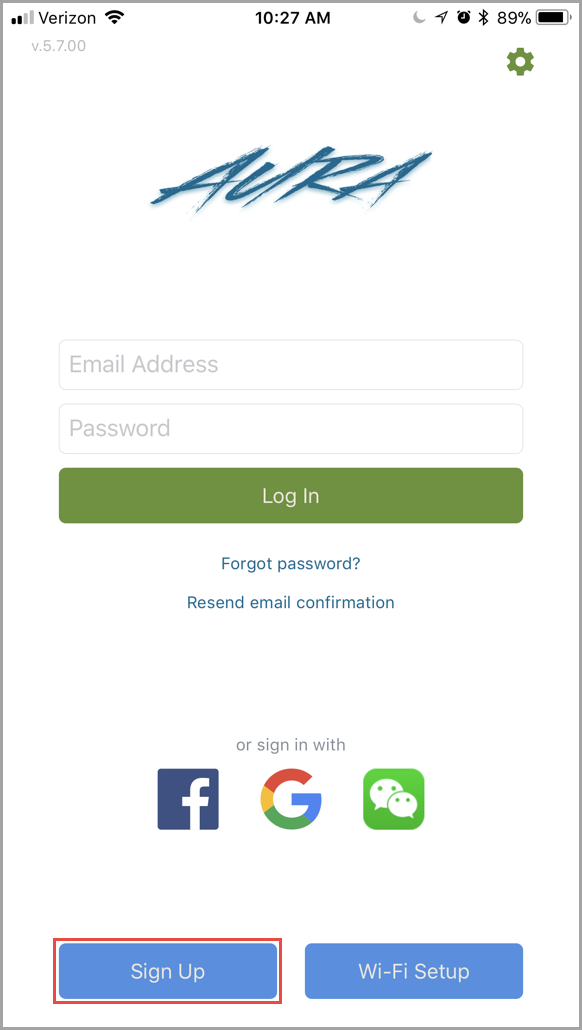
- Open the Ayla Aura app on your mobile phone or tablet, and then tap Sign Up, as shown:
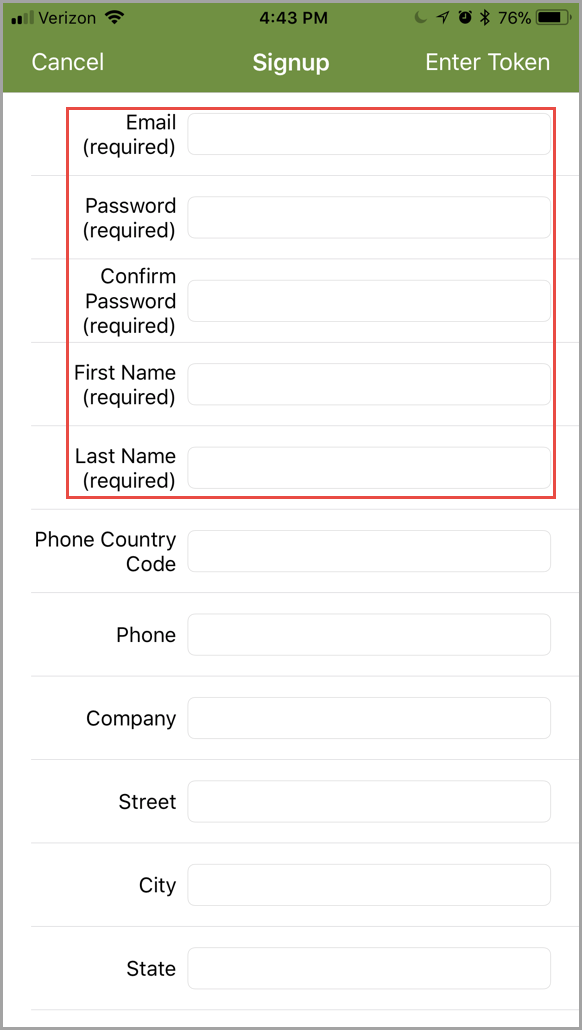
- Enter your information in the required fields (as shown below), and then tap SIGN UP at the bottom of the screen.
|
NOTE |
Ignore the DevKit num field. This is obsolete and will be removed in a future release. |
- Open the Welcome email that is sent after you complete the Sign-Up process.
|
NOTE |
The Welcome email is sent to the email account you entered on the Sign-Up screen. Refer to the following example. |
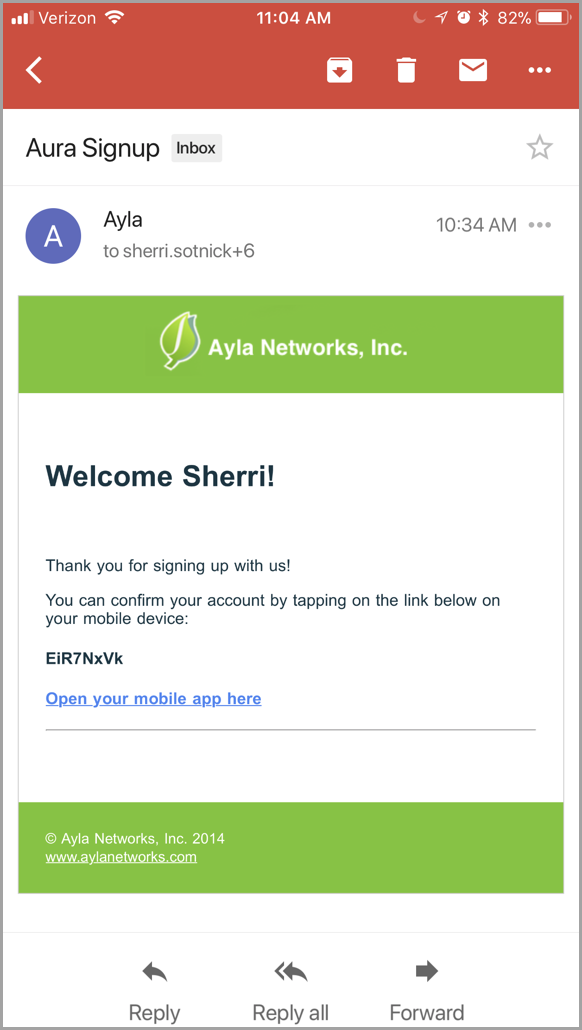
- To confirm your account, tap the link in your Welcome email, which prompts you to choose a browser to open the Ayla Aura app, as shown:
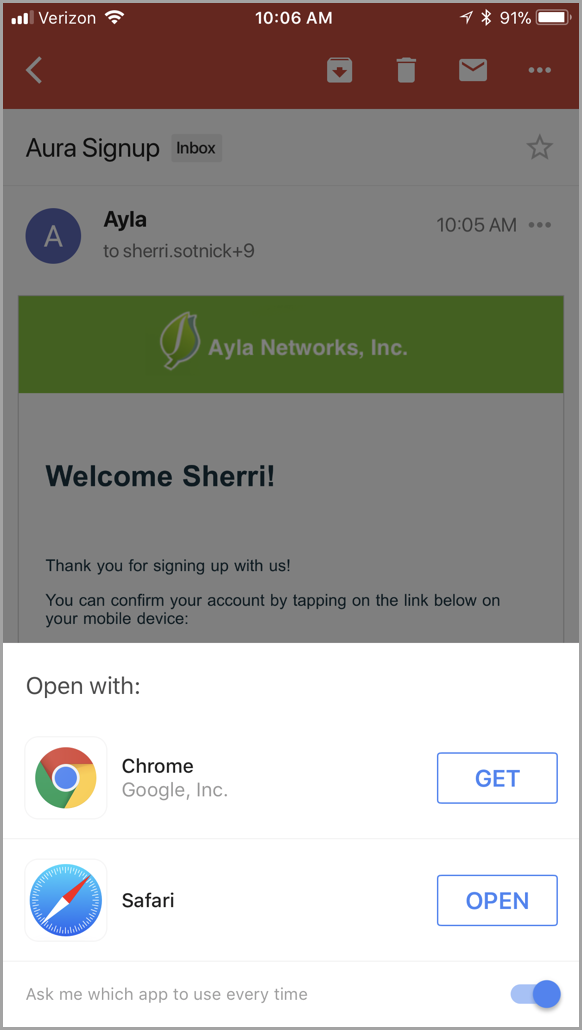
- Choose the browser you wish to open, which then prompts you to open the account confirmation in Ayla Aura, as shown:
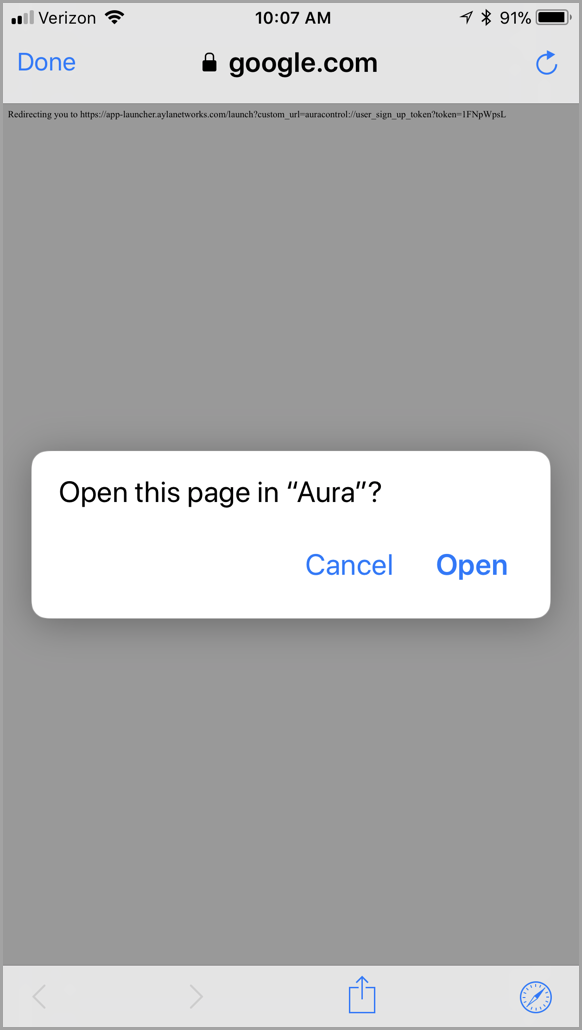
- Tap Open to display the confirmation prompt in Aura, as shown:
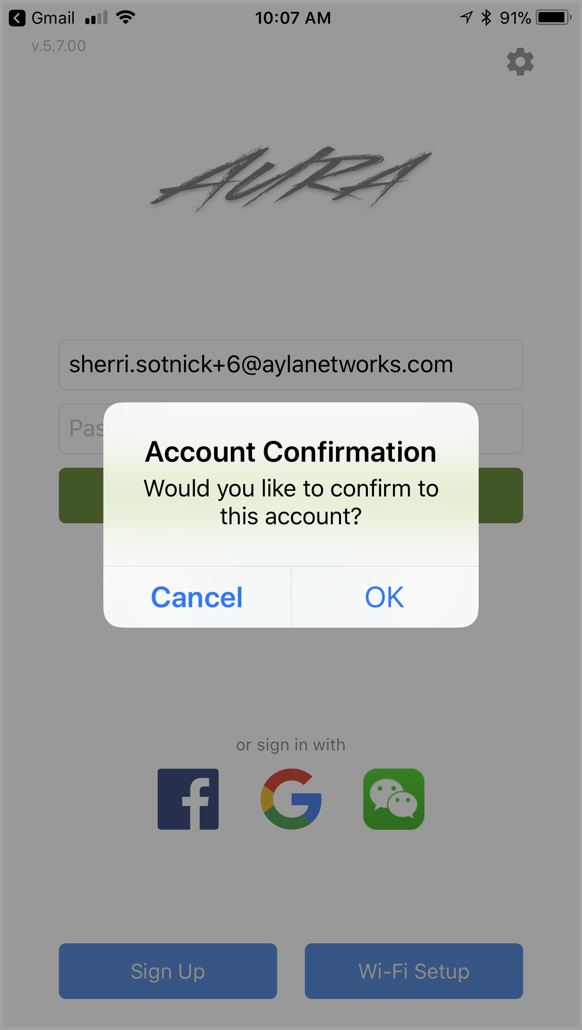
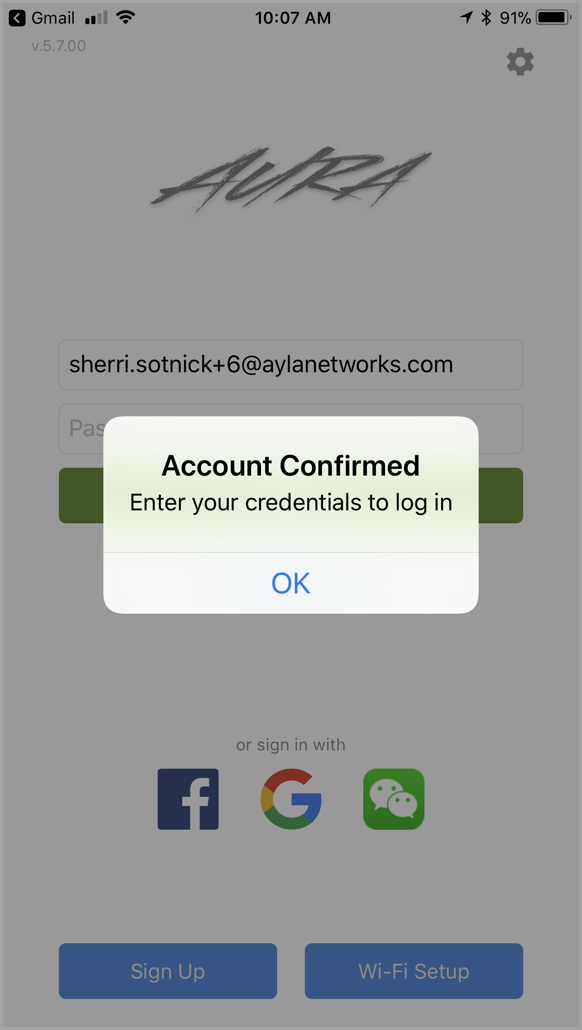
- Tap OK to confirm your Ayla Aura and Ayla Developer Portal accounts and complete the registration process. A confirmation message displays, as shown:
|
NOTE |
Once you receive this confirmation, you use the same credentials to log in to the Ayla Developer Portal whenever you choose to take advantage of the features available on that dashboard. |
Create the Ayla Developer Account from an Android Phone/Tablet
- Download the Ayla Aura app if you have not done so already. Refer to Prerequisites for instructions.
- Open the Ayla Aura app on your mobile phone or tablet, and then tap SIGN UP, as shown:
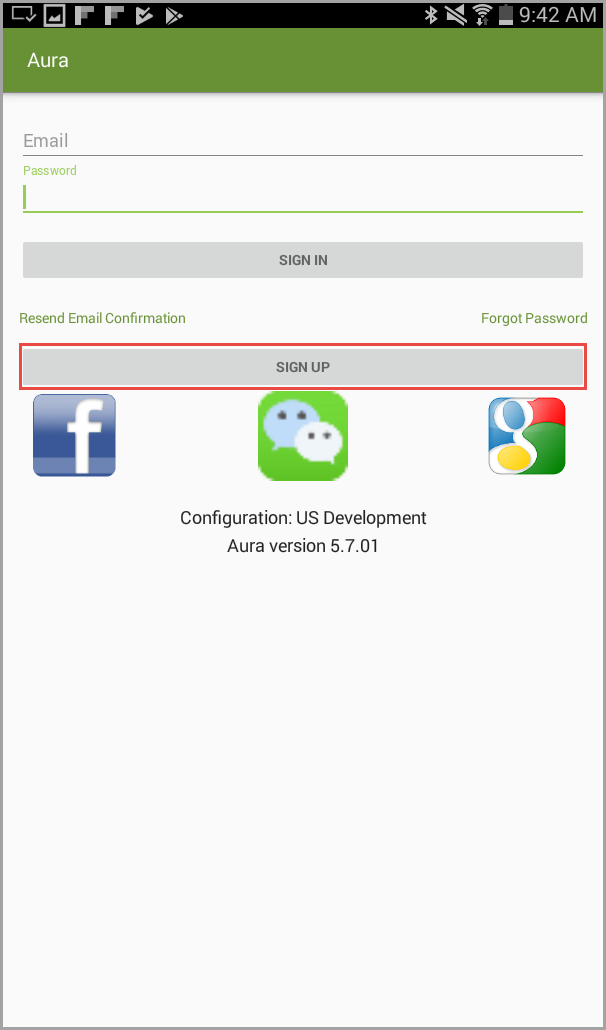
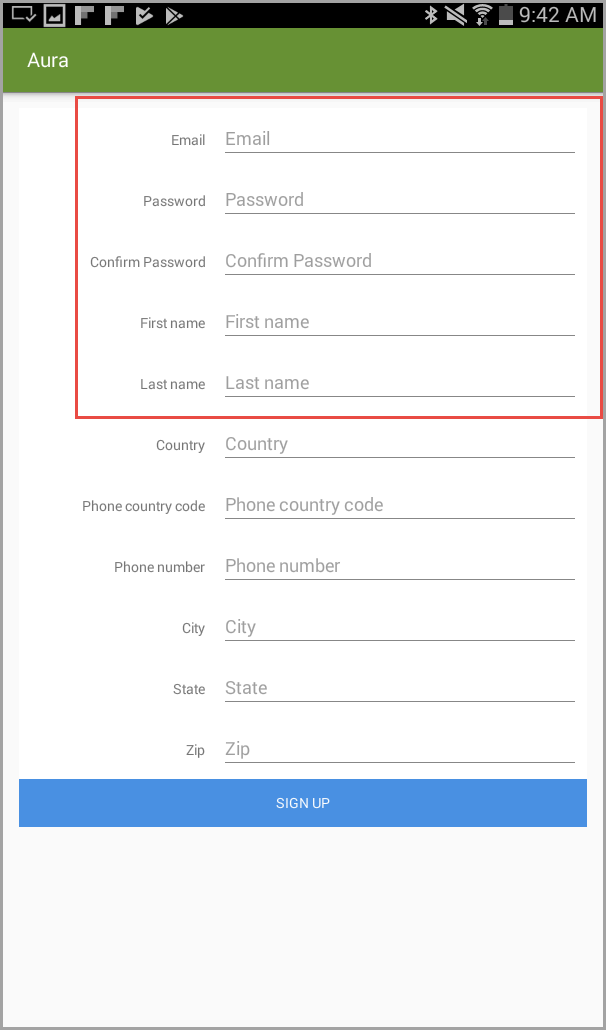
- Enter your information in the required fields that are indicated in the sample screen below, and then tap SIGN UP at the bottom of the screen.
|
NOTE |
Ignore the DevKit num field. This is obsolete and will be removed in a future release. |
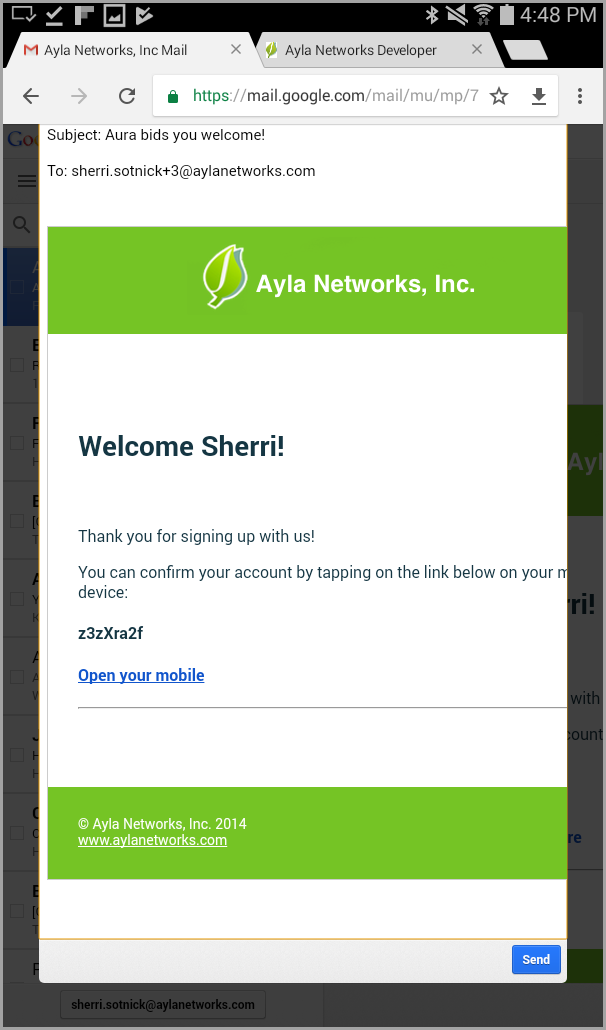
- Open the Welcome email that is sent after you complete the Sign-Up process. Refer to the example of the screen below.
|
NOTE |
The Welcome email is sent to the email account you entered on the Sign-Up screen. Refer to the following example. |
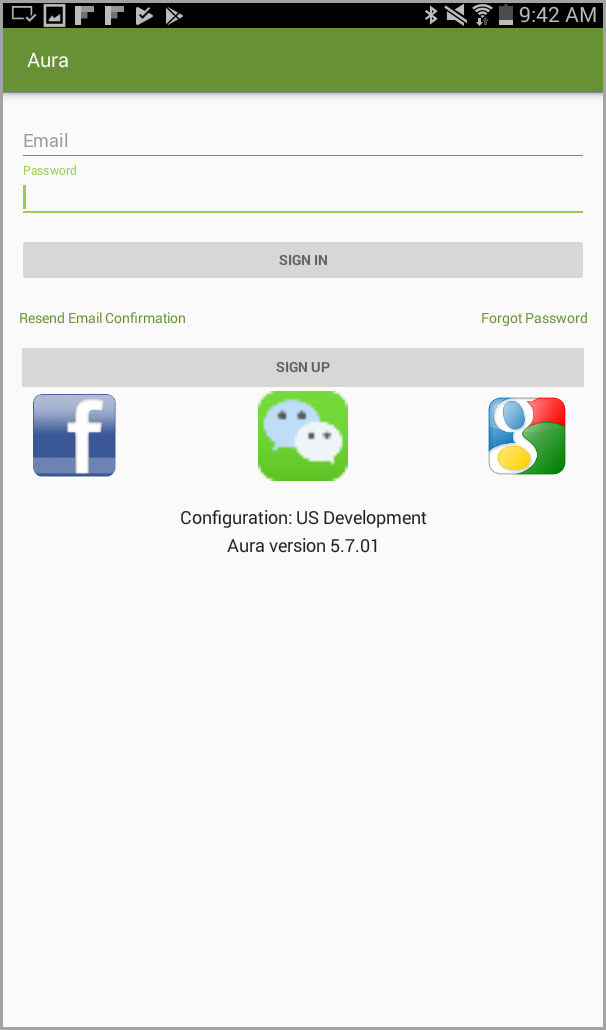
- Tap the link in your Welcome email to confirm your account and complete the registration process. This opens the Log-in page of your Ayla Aura app, as shown in the example of this screen below:
|
NOTE |
Upon clicking the link in your Welcome email, a message flashes at the bottom of your screen, indicating that the confirmation and registration is completing. |
|
NOTE |
Once your account is confirmed, you use the same credentials to log in to the Ayla Developer Portal when you choose to take advantage of the features available on that dashboard. |
Create the Ayla Developer Account from a Laptop/Computer
- Navigate to Ayla Networks Developer Site from your browser.
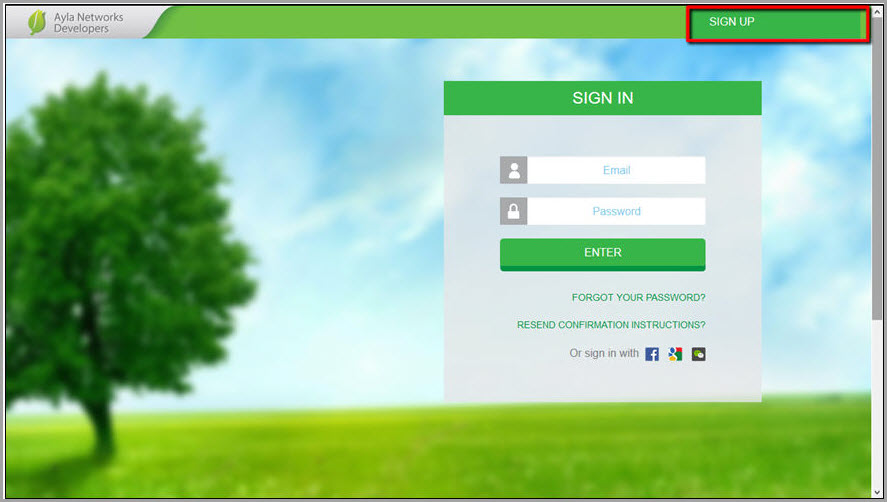
- Click SIGN UP (upper right corner) to create an account, as shown:
- On the Sign Up page (shown below), complete all of the required fields as indicated by an asterisk (*).
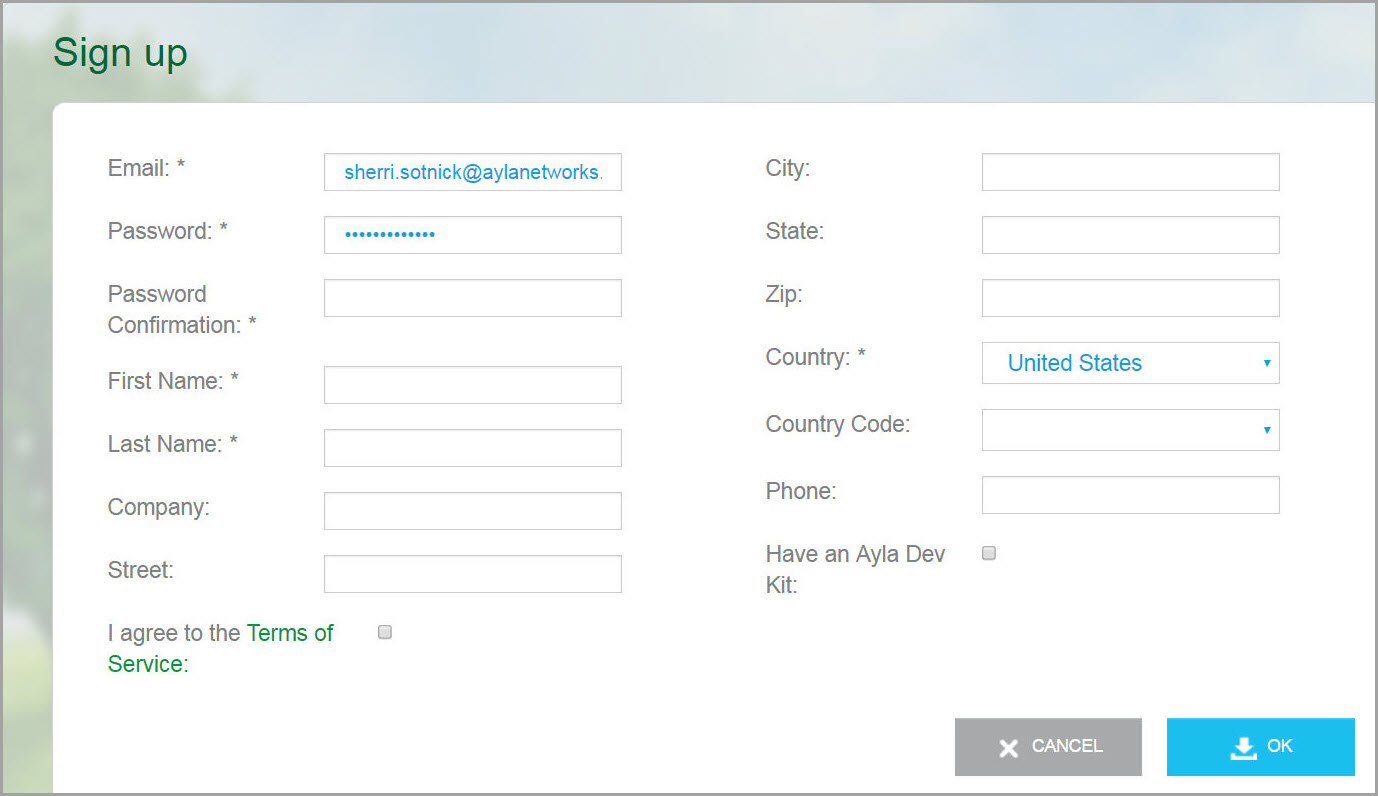
- Read the Terms of Service, and if you accept, click the checkbox for I agree to the Terms of Service.
|
NOTE |
Disregard the Have an Ayla Dev Kit checkbox. You register your device with the Ayla Aura mobile app. |
- Click OK to continue.
- When the sign-up/registration process is completed for your Ayla Developer Account, a Welcome email is sent to the email address entered on the Sign-up page.
- When the sign-up/registration process is completed for your Ayla Developer Account, a Welcome email is sent to the email address entered on the Sign-up page.
- To confirm your account, click the link in your Welcome email (shown below):
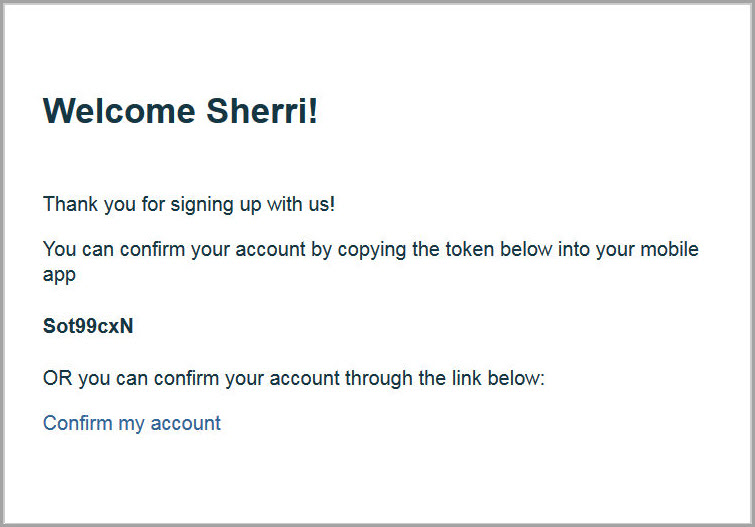
After clicking this link, the account is created and you are directed and logged in to the Ayla Networks Developer Site, as shown below: